Sunday, 26 June 2011

SharePoint 2010 - Unable to login through windows prompt (loopback issue)

Recently I was attempting to log into an extended SharePoint web application that had been configured for Claims Based Authentication.  The problem being that I was unable to login when prompted for credentials.

Turns out it was a loop back problem.  This can be fixed through a change to the registry. Which can be done manually or through some PowerShell.

New-ItemProperty HKLM:\System\CurrentControlSet\Control\Lsa -Name "DisableLoopbackCheck" -value "1" -PropertyType dword


Wednesday, 15 June 2011

SharePoint 2010 - Lookup Field + Content Type

A useful feature within SharePoint is the Lookup field.  This allows you to retrieve information from one list and display it as drop down list within another field.

Within SharePoint 2010 you can also pull through additional information about the field selected within the lookup dropdown.

Content Type

Within the content type declare the field reference for the Lookup.  Also declare an additional field references for the extra information you want to retrieve for the other list.

<FieldRef ID="{5955A1CD-3EF5-4D58-9DA6-628D0C997CD2}" Name="Employee" />
<FieldRef ID="{8BFAD894-D22C-4AED-91A2-2A75732899EC}" Name="EmployeeID" />

Schema

Within the schema for the content type you need to identify the list that the information is going to be retrieved from and the fields that you wish to display.

<Field ID="{5955A1CD-3EF5-4D58-9DA6-628D0C997CD2}" Type="Lookup" DisplayName="Employee" List="Lists/EmployeeDetails" ShowField="FullName" Name="Employee"/>
<Field ID="{8BFAD894-D22C-4AED-91A2-2A75732899EC}" Type="Lookup" DisplayName="ClockNo"List="Lists/EmployeeDetails" ShowField="ID" FieldRef="5955A1CD-3EF5-4D58-9DA6-628D0C997CD2" Name="EmployeeID" />

Key Items

Type="Lookup"

The type attribute determines the SharePoint field type.  For other field type see table bellow.

SharePoint Field

Type

Addition Info

Single Line of Text Text  
Multiple Lines of Text Note  
Date and Time DateTime Use Format tag to determine within is DateOnly or full DateTime
Choice Choice Use Format tag to determine display type: Dropdown, RadioButtons
Lookup Lookup  

List="Lists/EmployeeDetails"

The List attribute is used within a lookup field to determine which list the information is going to come from.  You can also specify the unique Guid for the list in here but be aware that it will change each time a list is deployed.

ShowField="FullName"
ShowField="ID"

The ShowField attribute is used within a lookup field to determine which pieces of information are to be retrieved for the specified list.

FieldRef="5955A1CD-3EF5-4D58-9DA6-628D0C997CD2"

Within any Lookups fields that have been created to pull back additional information you need to reference the main lookup field.  I have found that this works best if you omit any curly brackets from this reference.

Friday, 10 June 2011

Create custom SharePoint theme .thmx using PowerPoint

Within SharePoint 2010 there is the ability to set themes against sites.  This provides a quick way of changing the colours of certain areas of the site like the quick lunch,  navigation bar and hyperlinks.

It turns out that SharePoint can use the same file format for its theme as PowerPoint uses to brand slides.  Therefore we can use PowerPoint to create the .thmx file and use the resulting file within SharePoint.

Step 1

Open up PowerPoint.  Select the Design Tab then Colors.

PowerPoint - Theme

Step 2

Within Colors click “Create New Theme Colors”

PowerPoint - Colors

Step 3

You can now start creating you own custom theme.  Notice that the Theme options are the same as provided within SharePoint.

PowerPoint Create Theme

Give your newly created theme and name and click save.

Step 4

You now need to save the theme as a .thmx file which you can use within SharePoint.

Save Theme

Step 5

Now that you have a .thmx file containing your theme you can import in into your SharePoint site.

Within Site Settings you should see a Theme link within the Galleries grouping.
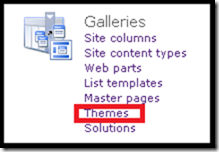
SharePoint Theme

Within here you can upload your .thmx file to SharePoint.

Step 6

Now that the theme is within SharePoint you can make use of it through the UI or you can reference it from code.

using (SPSite curSite = new SPSite("http://sharepoint"))
{
    using (SPSite curWeb = curSite.OpenWeb())
    {
        ReadOnlyCollection<ThmxTheme> siteThemes
            = ThmxTheme.GetManagedThemes(curSite);
        foreach (ThmxTheme theme in siteThemes)
        {
            if (theme.Name == "SharePointCustomTheme")
            {
                theme.ApplyTo(curWeb, true);
                break;
            }
        }
    }
}

Thursday, 9 June 2011

SharePoint 2010 Comments within Content Types

Recently I came across a content type which had comments within the field references. 

<Elements xmlns="http://schemas.microsoft.com/sharepoint/">
  <ContentType ID="0x01005B46F6F81C7447289D88DC03731379DF" Name="Content Type Name" Description="My Content Type" Group="My Content Types">
    <FieldRefs>
      <FieldRef ID="{81d3f215-b0e8-47d0-b9fc-42687f849c85}" Name="Field1" DisplayName="Field 1" />
      <!--<FieldRef ID="{ca10fe52-eee8-4e0a-bfc5-7b77db491dc5}" Name="Field2" DisplayName="Field 2" />-->
      <FieldRef ID="{798458ED-612F-45BE-AF77-5AB09A769270}" Name="Field2" DisplayName="Field 2" />
    </FieldRefs>
  </ContentType>
</Elements>

The content type deployed as expected, however, when you created a content type which inherited from this content type only the fields above the comment are pulled through into the inherited content type.

Monday, 6 June 2011

Visual Studio - Debugging SharePoint

In order to debug SharePoint within Visual Studio you need to attach visual studio debugger to the appropriate process.

You can attach the debugger to the process through:


The process you need to attach visual studio to depends on the type of solution you are developing.

Solution Type Process
Web Part w3wp.exe
Visual Web Part w3wp.exe
Application Pages w3wp.exe
Timer Jobs owstimer.exe
Sandbox solution spucworkerprocess.exe

SharePoint Timer Jobs
If you want to debug a SharePoint Timer Job ensure that the SharePoint Timer Service is running then attach the debugger to the owstimer,exe process within Visual Studio.
Within Central Administration navigate to:


Run the desired timer job and after a second or two the debugger should enter the break point within the timer job.